How to Configure ESP32 Wi-Fi with AsyncWebServer for Dynamic HTML Pages
Introduction
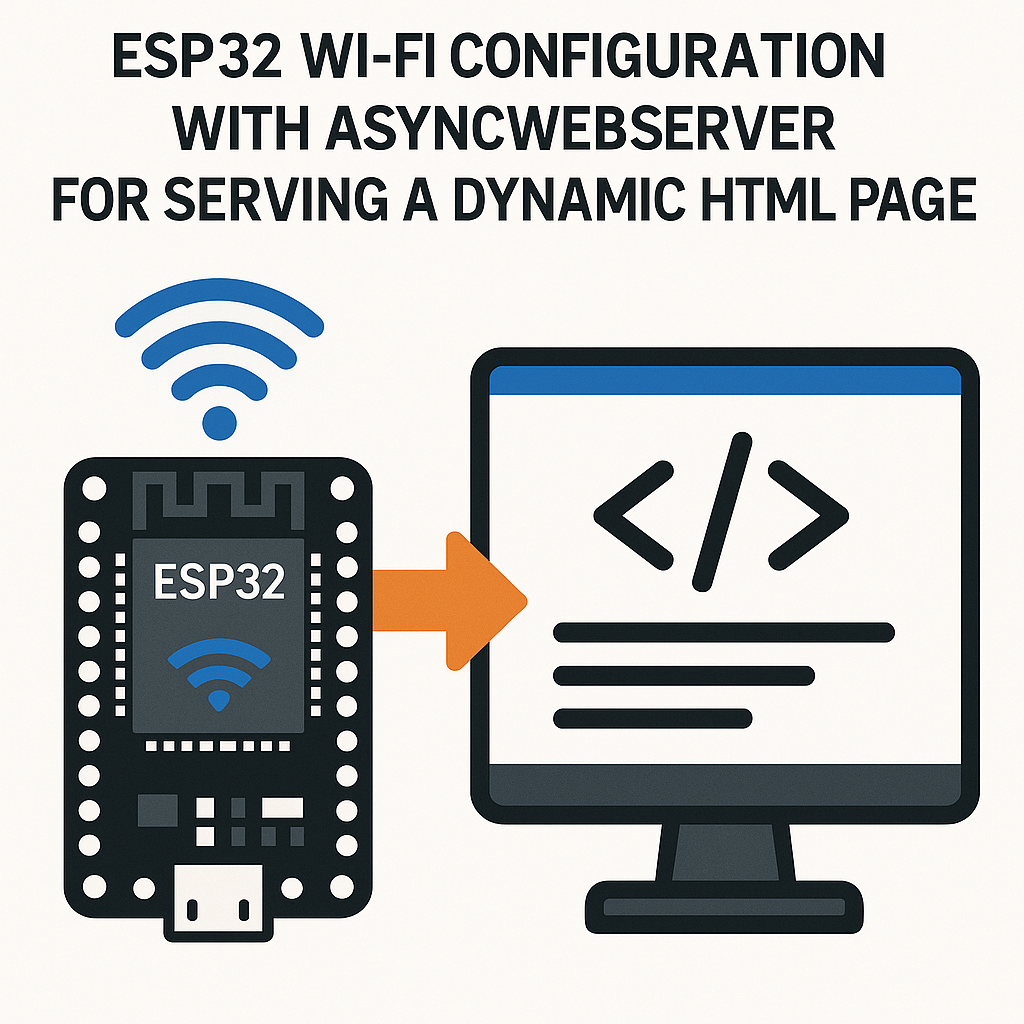
The ESP32 makes a surprisingly capable little web server. With the ESPAsyncWebServer library, you can serve dynamic HTML pages that update sensor readings, toggle GPIOs, or display system status — all from a browser on your phone or laptop. The async part matters: unlike the standard WebServer library that blocks your loop while handling requests, AsyncWebServer runs on a separate task under the hood, so your main code keeps running without stalling.
Here's how to get an ESP32 connected to Wi-Fi and serving dynamic content in about 30 lines of code.
Prerequisites
- Basic Arduino C++ skills (you should be comfortable with functions and string manipulation)
- An ESP32 dev board (any variant — DevKitC, NodeMCU-32S, etc.)
- Arduino IDE 2.x with the ESP32 board package v3.x installed
- ESPAsyncWebServer and AsyncTCP libraries installed
- A Wi-Fi network you can connect to (2.4 GHz — the ESP32 doesn't do 5 GHz)
Parts/Tools
- ESP32 development board
- USB cable (check whether your board needs USB-C or micro-USB)
- Arduino IDE 2.x
- Computer on the same Wi-Fi network as the ESP32
Steps
- Install the ESPAsyncWebServer Library
- ESPAsyncWebServer isn't in the official Arduino Library Manager. You need to install it manually from GitHub.
- Download ESPAsyncWebServer and AsyncTCP as ZIP files from their GitHub repos.
- In Arduino IDE 2.x, go to Sketch > Include Library > Add .ZIP Library and add both ZIPs.
- If you're using PlatformIO v6.x instead, just add these to your
platformio.ini:lib_deps = me-no-dev/ESPAsyncWebServer me-no-dev/AsyncTCP
- Connect the ESP32 to Your Computer
- Plug in the ESP32 via USB.
- In Arduino IDE 2.x, select your board:
- Tools > Board > esp32 > ESP32 Dev Module (or your specific variant).
- Tools > Port > pick the port that appeared when you plugged in the board.
- If the port doesn't show up on macOS or Linux, you may need the CP2102 or CH340 USB-to-serial driver depending on your board's USB chip.
- Write the Code
- Create a new sketch and paste this in:
- Replace
YOUR_SSIDandYOUR_PASSWORDwith your actual Wi-Fi credentials. - Notice the
%UPTIME%and%HEAP%placeholders in the HTML. Theprocessor()function replaces these with live values every time the page loads. This is the "dynamic" part — you can add any sensor readings, GPIO states, or computed values here.
#include <WiFi.h> #include <ESPAsyncWebServer.h> const char* ssid = "YOUR_SSID"; const char* password = "YOUR_PASSWORD"; AsyncWebServer server(80); // Simple template processor for dynamic content String processor(const String& var) { if (var == "UPTIME") { return String(millis() / 1000); } if (var == "HEAP") { return String(ESP.getFreeHeap()); } return String(); } const char index_html[] PROGMEM = R"rawliteral( <!DOCTYPE html> <html> <head><title>ESP32 Dashboard</title> <meta http-equiv="refresh" content="5"> </head> <body> <h1>ESP32 Status</h1> <p>Uptime: %UPTIME% seconds</p> <p>Free heap: %HEAP% bytes</p> </body> </html> )rawliteral"; void setup() { Serial.begin(115200); WiFi.begin(ssid, password); while (WiFi.status() != WL_CONNECTED) { delay(500); Serial.print("."); } Serial.println(); Serial.print("Connected - IP: "); Serial.println(WiFi.localIP()); server.on("/", HTTP_GET, [](AsyncWebServerRequest *request){ request->send_P(200, "text/html", index_html, processor); }); server.begin(); } void loop() { // AsyncWebServer handles requests in the background. // Use this loop for your other tasks. } - Upload and Test
- Hit the Upload button in Arduino IDE 2.x.
- Open Serial Monitor at 115200 baud.
- Wait for the "Connected - IP:" message. Note the IP address.
- On any device connected to the same Wi-Fi, open a browser and navigate to that IP address.
- You should see the ESP32 Status page with live uptime and heap values that update every 5 seconds (via the meta refresh tag).
- Making It Actually Dynamic
- The meta refresh approach works but reloads the whole page. For a smoother experience, use JavaScript with
fetch()to poll a JSON endpoint:server.on("/api/status", HTTP_GET, [](AsyncWebServerRequest *request){ String json = "{\"uptime\":" + String(millis()/1000) + ",\"heap\":" + String(ESP.getFreeHeap()) + "}"; request->send(200, "application/json", json); }); - Then in your HTML, use a small script to fetch
/api/statusevery few seconds and update the DOM. This avoids the full-page flicker and feels much more responsive. - Tip: for larger HTML files, store them in SPIFFS or LittleFS instead of inlining them as PROGMEM strings. Use
server.serveStatic("/", LittleFS, "/").setDefaultFile("index.html")to serve files from the filesystem.
- The meta refresh approach works but reloads the whole page. For a smoother experience, use JavaScript with
Troubleshooting
- Wi-Fi won't connect:
- Double-check SSID and password — these are case-sensitive.
- The ESP32 only supports 2.4 GHz networks. If your router broadcasts a combined 2.4/5 GHz SSID, it usually works, but some routers are picky. Try a dedicated 2.4 GHz SSID.
- If you're on a corporate or university network with WPA2-Enterprise (username/password), the standard
WiFi.begin(ssid, password)won't work. You needesp_wifi_sta_wpa2_ent_enable()and additional config.
- Page doesn't load:
- Confirm the ESP32 got an IP (check Serial Monitor). If it prints
0.0.0.0, the connection failed. - Make sure your browser device is on the same network and subnet.
- Try accessing
http://<ip-address>/explicitly — some browsers try HTTPS first and fail silently.
- Confirm the ESP32 got an IP (check Serial Monitor). If it prints
- 404 Not Found error:
- The URL path in your browser must match exactly what you registered with
server.on(). A trailing slash mismatch (/vs no slash) can cause this.
- The URL path in your browser must match exactly what you registered with
- Compilation errors with AsyncTCP:
- Make sure you installed both ESPAsyncWebServer and AsyncTCP. The web server library depends on AsyncTCP but doesn't always pull it in automatically.
- If you're on ESP32 board package v3.x and hitting API incompatibilities, check the ESPAsyncWebServer GitHub issues — you may need a fork that supports the v3.x API changes.
What's Next
You've got a working async web server on the ESP32 that serves dynamic content without blocking your main loop. From here, you can add more endpoints for controlling GPIOs, reading sensors, handling form submissions, or even serving a full single-page app from LittleFS. For production projects, add OTA update support so you can push firmware updates through the same web interface instead of plugging in a USB cable every time.