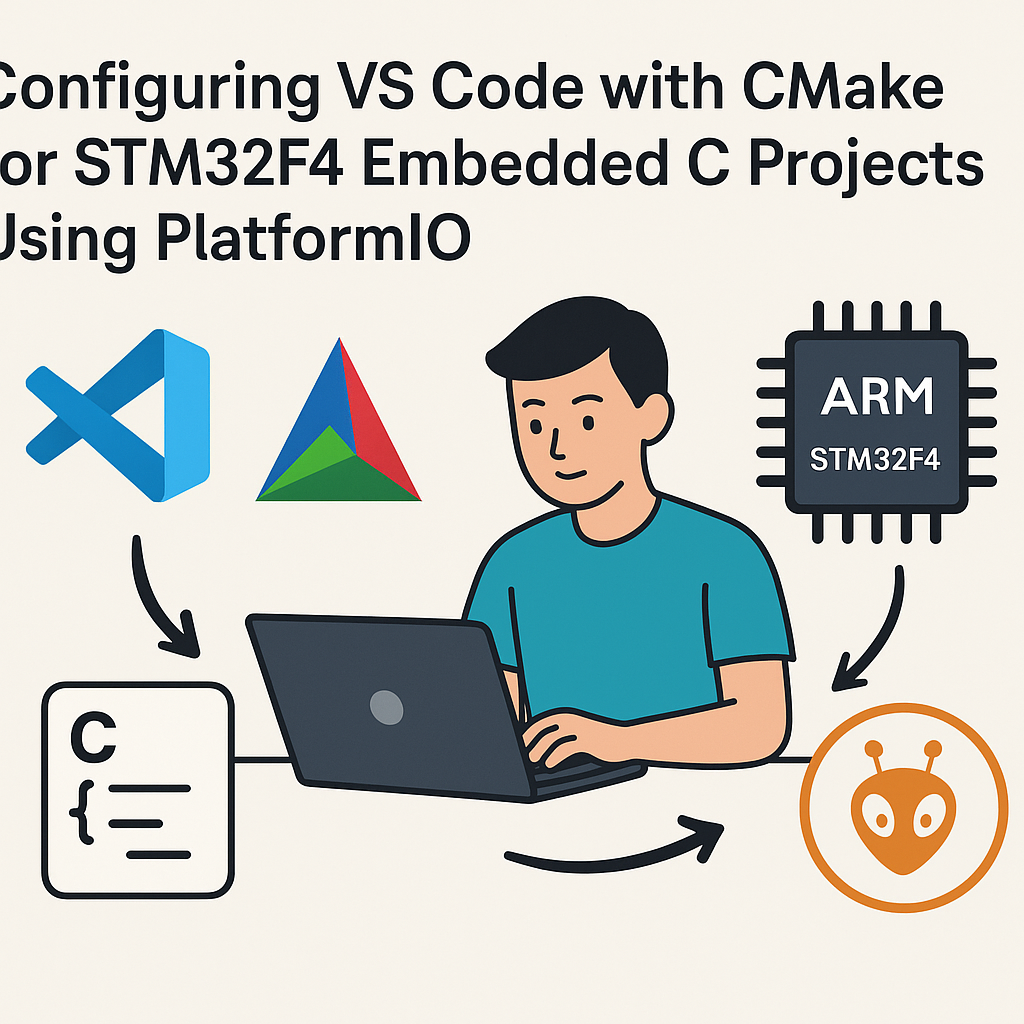
Configuring VS Code with CMake for STM32F4 Embedded C Projects Using PlatformIO
This tutorial will guide you through the steps necessary to configure Visual Studio Code (VS Code) for STM32F4 embedded C projects using CMake and PlatformIO. By the end, you will have a fully functional development environment for your embedded applications.
Prerequisites
- Basic knowledge of C programming
- Visual Studio Code installed on your machine
- PlatformIO extension installed in VS Code
- CMake installed on your system
- STM32F4 development board
Parts/Tools
- Computer (Windows, macOS, or Linux)
- STM32F4 development board
- USB cable for programming
- VS Code
- PlatformIO extension for VS Code
- CMake
Steps
-
Install Required Software
- Download and install Visual Studio Code.
- Open VS Code and go to the Extensions view by clicking on the Extensions icon or pressing
Ctrl+Shift+X. - Search for “PlatformIO” and install the PlatformIO IDE extension.
- Install CMake by following the instructions from CMake’s official website.
-
Create a New Project
- Open PlatformIO in VS Code.
- Click on “New Project”.
- Enter your project name and select your STM32F4 board from the board dropdown.
- Select “CMake” as the project framework.
- Click “Finish” to create the project.
-
Configure CMakeLists.txt
- Navigate to your project folder.
- Open the
CMakeLists.txtfile located in the root directory. - Add the following lines to specify your project and STM32F4 settings:
- Save the changes.
cmake_minimum_required(VERSION 3.10) project(MySTM32Project) set(CMAKE_SYSTEM_NAME Generic) set(CMAKE_SYSTEM_PROCESSOR cortex-m4) # Specify the path to your STM32F4 toolchain set(CMAKE_C_COMPILER arm-none-eabi-gcc) set(CMAKE_CXX_COMPILER arm-none-eabi-g++) set(CMAKE_EXE_LINKER_FLAGS "-TSTM32F4xx.ld") -
Add Source Files
- Create a new folder named
srcin your project directory. - Add your source code files (e.g.,
main.c) inside thesrcfolder. - Ensure your
main.cincludes necessary STM32F4 headers:
#include "stm32f4xx.h" int main(void) { // Your code here while(1); } - Create a new folder named
-
Build the Project
- Open the terminal in VS Code using
Ctrl + `. - Run the following command to build your project:
platformio run - Open the terminal in VS Code using
-
Upload the Firmware
- Connect your STM32F4 development board to your computer via USB.
- In the terminal, run the following command to upload your firmware:
platformio run --target upload
Troubleshooting
- Build Errors: Ensure that your source files are correctly named and located in the
srcfolder. Check theCMakeLists.txtfor typos. - Upload Issues: Verify that your board is properly connected and recognized by your computer. Check the port settings in PlatformIO.
- Missing Headers: Ensure you have included the necessary STM32F4 header files and that the toolchain is correctly set up in your
CMakeLists.txt.
Conclusion
By following this tutorial, you have successfully configured VS Code with CMake for STM32F4 embedded C projects using PlatformIO. You should now be able to create, build, and upload your projects seamlessly. Happy coding!