Introduction
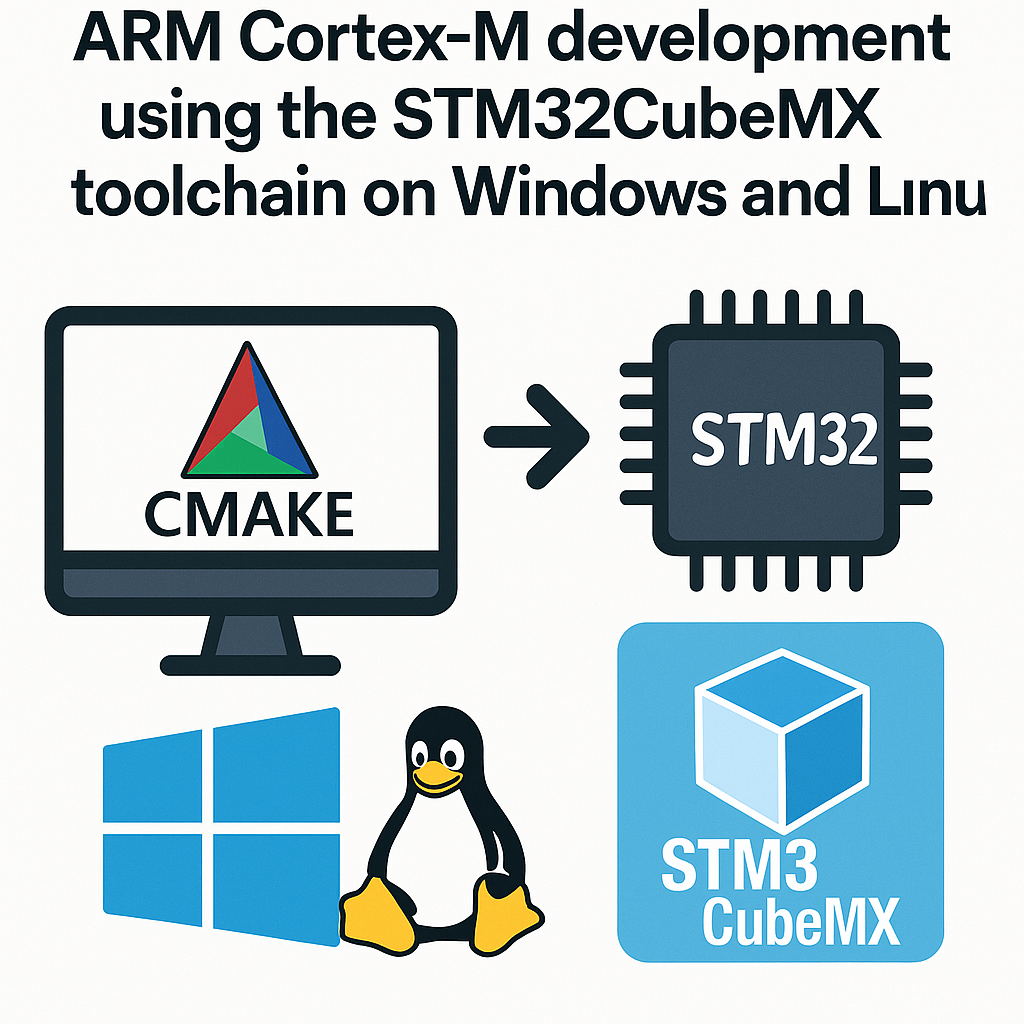
In this tutorial, we will guide you through the process of setting up CMake with Visual Studio Code (VS Code) for ARM Cortex-M development using the STM32CubeMX toolchain. This setup will work on both Windows and Linux operating systems, enabling you to efficiently develop and manage embedded applications for STM32 microcontrollers.
Prerequisites
- Basic knowledge of C/C++ programming.
- VS Code installed on your machine.
- CMake version 3.10 or higher installed.
- STM32CubeMX installed.
- GNU Arm Embedded Toolchain installed.
- Git (optional, but recommended for version control).
Parts/Tools
- Computer with Windows or Linux OS.
- VS Code.
- ARM Cortex-M microcontroller development board.
- USB programmer or debugger (such as ST-Link).
Steps
-
Install Required Software:
- Download and install Visual Studio Code.
- Download and install CMake.
- Download and install STM32CubeMX.
- Download and install the GNU Arm Embedded Toolchain.
-
Set Up STM32CubeMX Project:
- Open STM32CubeMX and create a new project.
- Select your target STM32 microcontroller.
- Configure peripherals as needed for your application.
- Go to “Project Settings” and set the toolchain to “Makefile”.
- Click “Project” > “Generate Code” to create the project files.
-
Open the Project in VS Code:
- Launch VS Code.
- Select “File” > “Open Folder…” and choose the folder where STM32CubeMX generated your project.
-
Create a CMakeLists.txt File:
In the root of your project folder, create a new file named
CMakeLists.txtand add the following content:cmake_minimum_required(VERSION 3.10) project(MySTM32Project C CXX) set(CMAKE_C_STANDARD 11) set(CMAKE_CXX_STANDARD 11) include_directories( ${CMAKE_SOURCE_DIR}/Drivers/STM32F4xx_HAL_Driver/Inc ${CMAKE_SOURCE_DIR}/Core/Inc ) file(GLOB SOURCES "Core/*.c" "Drivers/STM32F4xx_HAL_Driver/Src/*.c" ) add_executable(${PROJECT_NAME} ${SOURCES}) -
Configure VS Code for CMake:
- Install the “CMake Tools” extension from the VS Code marketplace.
- Open the command palette (Ctrl + Shift + P) and type “CMake: Configure”.
- Select the appropriate kit (e.g., GCC for ARM). This may require configuring the CMake settings if your toolchain is not detected.
-
Build the Project:
- Open the command palette and type “CMake: Build”.
- Ensure that the build is successful and check for any errors in the terminal.
-
Upload to the Microcontroller:
To upload your program to the microcontroller, you can use a terminal command or an extension. For ST-Link, use:
st-flash write build/MySTM32Project.bin 0x8000000
Troubleshooting
- If CMake cannot find your toolchain, ensure that the path to the toolchain binaries is added to your system’s PATH environment variable.
- If you encounter build errors, check your
CMakeLists.txtfile for any missing source files or incorrect paths. - For upload issues, confirm that the debugger/programmer is properly connected and configured in STM32CubeMX.
Conclusion
By following these steps, you should now have a functional development environment for ARM Cortex-M microcontrollers using CMake and VS Code. This setup allows for efficient project management and streamlined development processes. Happy coding!